How to use AirPods as a posture reminder at your desk
Published
To use Poise at your desk, connect supported headphones to your iPhone, allow motion access and calibrate while sitting comfortably upright. Keep the phone nearby; the computer does not need to run Poise.
Poise also works away from your desk. Use Poise while walking for the walking settings and a phone-in-your-pocket setup.
What you need
You need an iPhone running iOS 18 or later and headphones on the Poise support list. Wear and connect them to that iPhone. If your AirPods have switched to another device for audio, check their connection before starting setup.
Set your baseline
- Open the headphone check. Follow setup in Poise and allow the motion permission when requested. Continue once the app receives motion.
- Sit as you want to sit while working. Look ahead and settle into a comfortable upright position. You do not need to strain or hold an exaggerated pose.
- Start calibration. Tap "I'm Ready" and hold still through the on-screen sequence. Finish calibration before expecting reminders.
- Return to your desk task. Poise compares later head tilt with that baseline. A brief glance down is different from a tilt held beyond your chosen delay.
If you change your setup or reseat the headphones and the baseline no longer feels useful, open Settings and choose Recalibrate. The app checks the baseline again rather than expecting you to match an arbitrary angle.
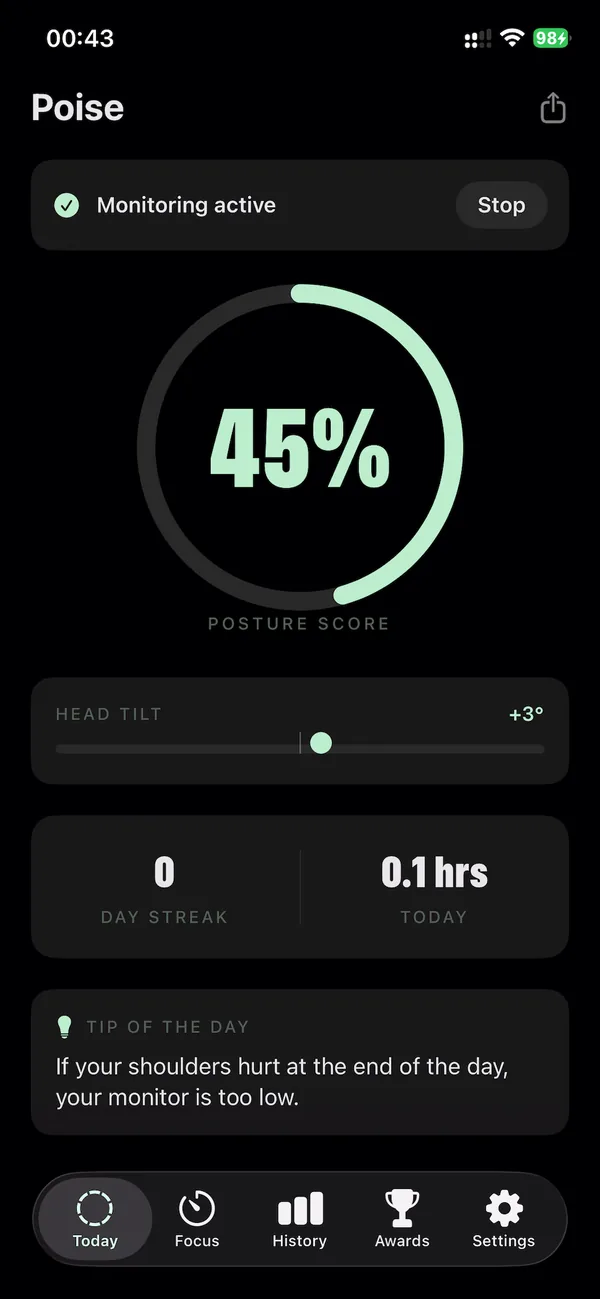
Check the settings that affect a desk session
In Settings, Sitting Posture controls your stationary reminder preferences when Smart Activity Detection is enabled. With activity detection disabled, that row is named Posture Sensitivity Settings.
Background Posture Monitoring allows monitoring while Poise is minimized. Always Sensing supports starting when you put the headphones in, subject to its settings and connection requirements. Active Hours limits monitoring to the windows you select. If you expect reminders outside a selected window, adjust that schedule.
Why looking at your phone can pause nudges
Phone-Awareness Mode holds reminders when the app's phone-use conditions are met. It uses signals such as phone activity and head position; it cannot see what is on your screen. If you are checking a message, the lack of a nudge may be expected.
Music, a locked screen and your computer
Poise does not require music. For background use, keep Background Posture Monitoring enabled and leave the app available in the background. AirPods need to remain connected to the iPhone running it. Poise also works during calls.
Read how Poise behaves without music for more detail. If the status does not match what you expect, work through the tracking checklist.
What to expect from a reminder
A nudge is a cue to notice your head position. Poise reports time spent in good posture, and the Progress tab helps you review that time. A reminder is not a whole-body assessment. Read what the sensors cannot see.
Watch Aaron demonstrate Poise before trying the setup.
See Poise in action
Watch the founder demonstration, then check the compatible headphones and setup steps.